5. Specifying Photo Tags
Photo tag is an additional parameter for the taken photos in Salesforce and the CT Mobile app. Each tag has its label and color.
Create a New Tag
To create a new tag:
-
Go to the Tags tab. If this tab is not displayed, add it to the panel.
-
Click New.
-
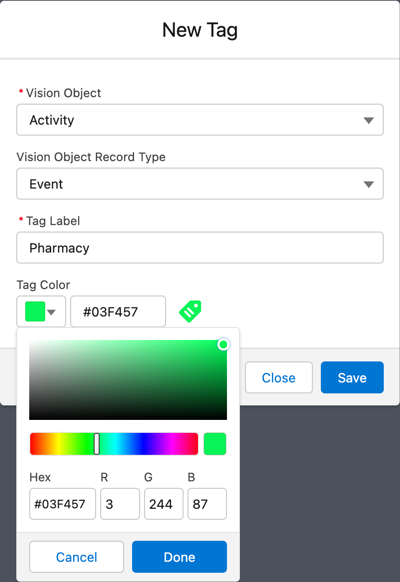
Select a Vision Object (required) and Vision Object Record Type (if needed):
-
If you selected only a vision object, the tag will be available for all records on this object.
-
If you selected vision object and its record type, the tag will be available for all records matching this record type.
Photo tags can be added only to photos that are created for the same object and/or its record type. For example, if the photo was created for the Account object, you can add only photo tags that are also created for the Account object. Or, if the photo was created for the Customer record type of the Account object, you can add only photo tags that are also created for the Customer record type.
-
-
Type in a Tag Label.
-
If needed, pick a Tag Color and click Done.
-
Click Save.
| You can also add custom fields to the photo tag creation form. To do that, edit the FieldSet of the ctv__Tag__c object by adding desired fields. The added fields will be displayed under the Tag Color field in the specified order. |
Editing a Tag
To edit a tag:
-
Go to the Tags tab. If this tab is not displayed, add it to the panel.
-
Click on desired tag record.
-
Click
 on the tag parameter you want to change.
 -
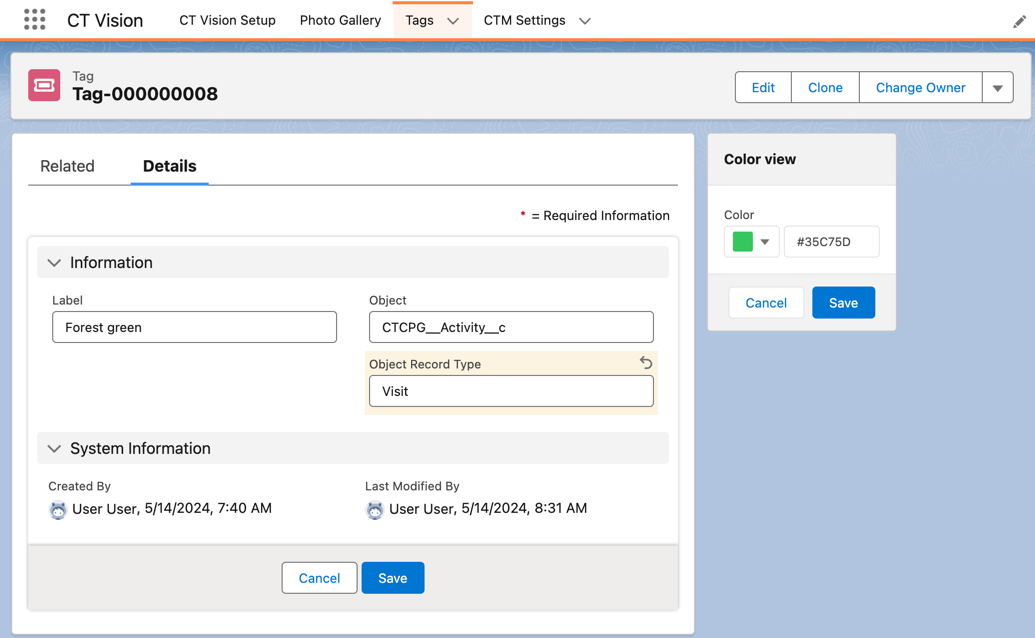
To change the tag color, use the Color view panel on the right side:
-
Pick the new color or type its hex code.
-
Click Save.
-
Managing Access to Photo Tags
To allow a user working with the specific photo tag in Salesforce, CT Mobile, and while searching in the Picture Gallery, share access to the tag:
-
Go to the Tags tab. If this tab is not displayed, add it to the panel.
-
Click on the desired tag from the list.
-
Click
 and select Sharing.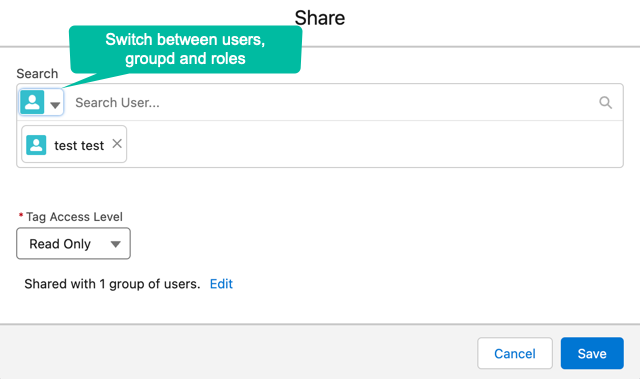
-
Search for users, roles, or groups to share the tag with.
-
Select the Read/Write Tag Access Level.
-
Click Save.
To view the sharing hierarchy:
-
Go to the Tags tab. If this tab is not displayed, add it to the panel.
-
Click on the desired tag from the list.
-
Click
and select Sharing hierarchy.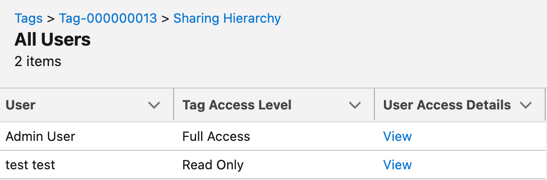
-
The list of users, groups, and roles, which have access to the tag will be displayed. Click the View link to see access details for each user.
Users with the System Administrator profile has the full access by default.